
Start your first sync
Send your contacts to all your accounts for the first time with Start syncing.
Until you start syncing, ContactZapp only reads your contacts. It writes nothing to your accounts, and no scheduled sync runs. Start syncing updates your accounts so they all hold these contacts.
Before you start
Connect at least one account. See Connect your first account. With one account, ContactZapp can clean up duplicates. Add a second account to sync between them.
Steps
- Tap Start syncing in the top bar.
- To watch it run, tap Sync details.
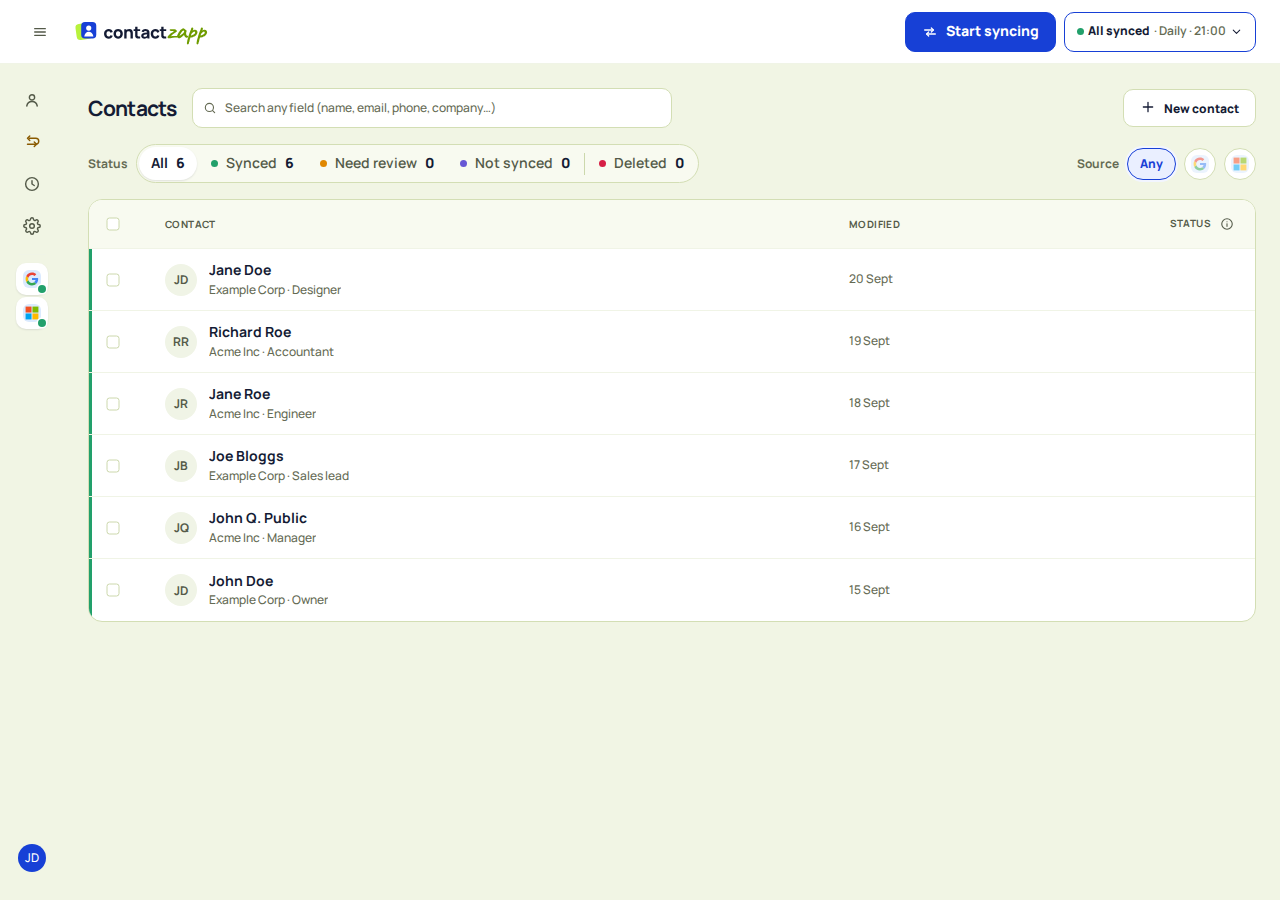
What happens next
The first sync runs. The panel shows what it's doing, such as "Reading Google" and "Finding duplicates", and how many contacts each account has read.
From then on the button reads Sync now.
New accounts start on Manual only. ContactZapp checks for changes only when you tap Sync now. To check on a schedule, see Change how often ContactZapp checks.
To stop a sync that's running, tap Stop Sync.
If something goes wrong
- The sync failed. The panel says "Sync failed" with the account's name. Tap Sync now to try again.
- A provider asked us to slow down. The panel says the account "asked us to slow down — still syncing". Nothing to do.
- An account needs reauthorizing. See Reauthorize an account.
- Sync couldn't start. The message says "Sync could not be started. Try again." Tap the button again.
- One contact didn't update. Open the Sync log.
Related questions
How often does ContactZapp check my accounts for changes, and can I change it?
You can choose Hourly, Daily or Manual only. Use the switch next to Sync now in the top bar, or go to Settings › Sync and use Check for changes. New users start on Manual only, which never checks on its own, so use Sync now when you want to check. Hourly and Daily are not real-time. A run can start later than the interval, by up to half an interval. The Digest email setting only controls the summary email and doesn't change how often we check.