
Connect your first account
Add Google, Microsoft, iCloud or a CardDAV address book so ContactZapp can read your contacts.
Connecting an account lets ContactZapp read its contacts. Nothing is written to the account yet. A new account is two-way and includes all its contacts. You can change both in Settings.
Steps
- After you sign in, the screen Connect the accounts you want in sync opens. Start with the account you use most.
- If you signed in with Google or Microsoft, a box offers that account first. Tap Connect it.
- For any other account, tap Or choose another account. Pick Google, Microsoft, iCloud or Other (CardDAV).
- For Google, tap Continue to Google when the card Tick the contacts box when Google asks appears. On Google's page, tick the box that allows access to your contacts.
- For Microsoft, follow Microsoft's sign-in page.
- For iCloud, you need an app-specific password. Open account.apple.com, go to Sign-In and Security › App-Specific Passwords and create one called "ContactZapp". Enter your Apple Account email and the password, then tap Connect iCloud.
- For CardDAV, enter your server address, username and password. Then tap Connect. Your provider lists the server address in its help pages under "CardDAV".
- When the message "is connected" appears, tap Done.
- If an iCloud or CardDAV account has more than one address book, you choose one first: Which address book should sync? ContactZapp syncs one address book from the account. Choose it, then tap Done.
- On Your accounts are connected, tap Next. You can add a second account here too.
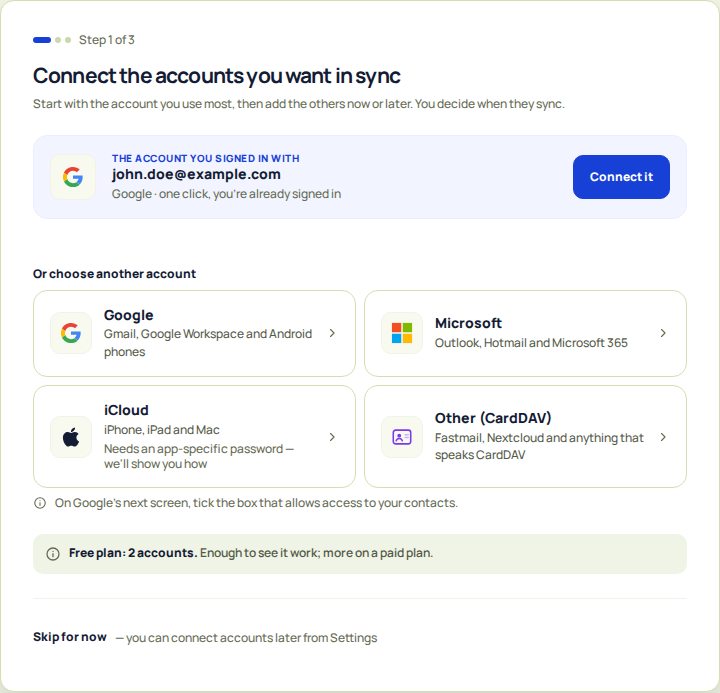
Not ready? Tap Skip for now. You can connect accounts later from Settings › Accounts.
What happens next
ContactZapp starts reading your contacts on its own. The screen Reading your contacts shows the progress. A large address book can take a few minutes.
You don't have to wait. Tap Go to my contacts. Reading and finding duplicates carry on in the background.
On the free plan, a card then shows which contacts sync between your accounts. Tap Continue.
Nothing is written to your accounts until you start syncing.
If something goes wrong
- Google comes back without contacts access. Add the account again. On Google's page, tick the box that allows access to your contacts.
- Apple doesn't accept the password. Use your Apple Account email and an app-specific password, not your normal password. A new password can take a few minutes before Apple accepts it. Wait, then try again.
- "We couldn't connect with those credentials." Check the server address, username and password. Then try again.
- "Looking for your address books…" doesn't finish. After a couple of minutes it says "Still looking for your address books". Tap Check again, or continue and choose the address book later in Settings.
- Your plan allows no more accounts. The screen says you've reached the number your plan allows. Open Settings › Plan & billing to see your options.
Related questions
Which contact providers does ContactZapp sync with?
ContactZapp works with Google, Microsoft, Apple and CardDAV. That covers Gmail and Google Workspace, Outlook, Hotmail and Microsoft 365, iCloud contacts, and other services that speak CardDAV, such as Fastmail and Nextcloud.
You can connect more than one account, including several from the same service. How many depends on your plan, and you can see your number in Settings › Plan & billing.
An account only syncs while it is connected and not paused. A read-only account is read but we never change it. For each account you choose which contacts to include: by label for Google and Microsoft, or by address book for iCloud and CardDAV.
For iCloud you use an app-specific password, and we show you how to make one. Apple Sign-In is not available.