
Sign in to ContactZapp
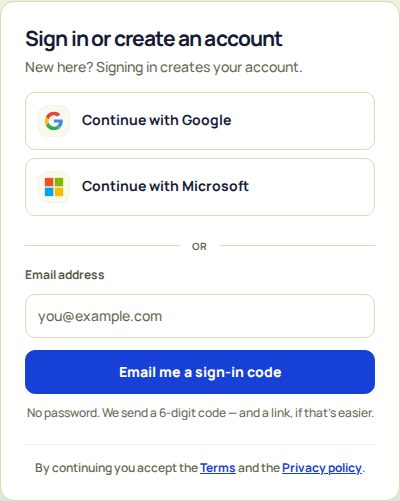
Sign in with Google, Microsoft or a code we email you. New here? Signing in creates your account.
There is no password. You sign in with Google, with Microsoft or with a code we email you. The same buttons create your account if you're new.
Steps
- Open ContactZapp. The card is called Sign in or create an account.
- Tap Continue with Google or Continue with Microsoft.
- Or type your email address and tap Email me a sign-in code.
- Open the email we send. Type or paste the 6-digit code. You're signed in as soon as the sixth digit is in. You can also tap Sign in.
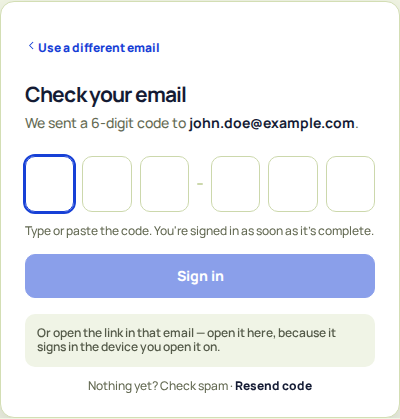
You can open the link in the email instead of typing the code. Open it on the device where you want to sign in.
What happens next
If you're new, we ask you to activate the free plan first. The card is called Activate your free plan. Confirm it with the same email you signed in with. Then you go on to connect your first account.
If you already have accounts connected, you land on your contacts.
If something goes wrong
- No email yet. Check your spam folder. The button changes to Resend code when you can ask for another. Only the newest code works.
- The code doesn't match or has expired. Tap Send a new code. It goes to the same address.
- Too many wrong codes. Use the link in the newest email we sent you, or try again tomorrow.
- Wrong address. Tap Use a different email.
- The link asks "Sign in with this link?" Tap Sign in only if you asked for the link yourself. Otherwise tap Cancel.
- You cancelled Google or Microsoft sign-in. Nothing was shared with ContactZapp. Try again, or use your email.
- The free plan window doesn't open. Check your connection, or allow this site in your ad blocker. Then tap Try again.