In short
- Google and Microsoft 365 keep separate address books, and neither syncs contacts with the other.
- The built-in workarounds copy your contacts once, or show both lists side by side without joining them.
- For one list that stays current both ways, use a sync service that also merges duplicates.
If you use Gmail for personal mail and Microsoft 365 at work, you have two address books. Add a new client on your phone's Google account and Outlook has never heard of them. Fix a phone number in Outlook and Gmail keeps the old one. Over a year or two the lists drift apart, and every few months you find the same person saved three times with three different numbers.
This guide covers what Google and Microsoft give you out of the box, why none of it gives you one list, and how to set up a two-way sync that merges duplicates instead of multiplying them.

Why Google and Microsoft don't share contacts
Both companies keep contacts in their own cloud: Google Contacts behind Gmail and Android, Exchange Online behind Outlook and Microsoft 365. Each one is the source of truth for its own apps, and neither keeps a competitor's list up to date. They share formats for moving contacts once, CSV and vCard, but a file is a snapshot. The moment you edit a contact after exporting it, the two copies disagree.
Your phone makes the problem look solved when it isn't. An iPhone or Android phone can show contacts from several accounts in one list, so everything appears to be in one place. But the phone is only displaying them together. Edit a contact that came from Google and the change goes back to Google, nowhere else.
The native options, and where each falls short
There are three ways to get contacts across without extra software. Each solves part of the problem.
Export a CSV from Google and import it into Outlook
In Google Contacts, choose Export, pick Outlook CSV, then import the file in Outlook. It's free, and it's the right tool for a one-time move, say when you leave Gmail for good.
It isn't a sync. Nothing updates after the import, and running it again later adds every contact a second time unless you clean up first. Photos don't travel in a CSV file at all.
Add your Gmail account to Outlook
Outlook can sign in to a Gmail account next to your work account. That's handy for reading mail in one place, but the address books stay separate:
- A contact you add to your Microsoft 365 address book never reaches Google.
- Your phone, if it only has the work account, still doesn't see your Gmail contacts.
- The same person saved in both accounts shows up twice.
Google Workspace Sync for Microsoft Outlook
If your company runs Google Workspace, Google's own plug-in syncs mail, calendar and contacts with desktop Outlook on Windows. It works both ways, but it's built for a Workspace account used through Outlook, not for a personal Gmail account next to a Microsoft 365 mailbox, and it does nothing for your phone.
What each option does
| Option | Keeps updating | Both directions | Merges duplicates | Personal Gmail |
|---|---|---|---|---|
| CSV export and import | No | No | No | Yes |
| Gmail account added to Outlook | Yes | No | No | Yes |
| Google Workspace Sync for Outlook | Yes | Yes | No | No |
| A two-way sync service | Yes | Yes | Yes | Yes |
Swipe the table to see every column
A one-time copy also starts going stale on day one. Every edit you make afterwards lands in only one of the lists, so the gap between them grows month by month.
Contacts that differ between the two lists
- One-time CSV copy
- Two-way sync
Where the duplicates come from
Most people who use two accounts already have many of the same people in both, because a phone or an email app quietly saves new contacts into whichever account is the default. Copy one list into the other and every shared contact becomes two.
Contacts per list, before and after merging
- Unique people
- Duplicates
Address book
Contacts
A good sync doesn't only copy contacts across. It recognises that the Anna Rossi in Gmail and the Anna Rossi in Outlook are one person, combines what each account knows about her, and keeps the result in both places.
Step by step: sync Google and Microsoft 365 with ContactZapp
ContactZapp keeps one contact list across Google, Microsoft 365, iCloud and CardDAV, and merges duplicates across all of them. Here's the setup for one Google account and one Microsoft 365 account.
Connect your Google account
Sign in with Google and set the account to two-way, so changes flow in and out. ContactZapp never sees your password: Google's own sign-in handles it.
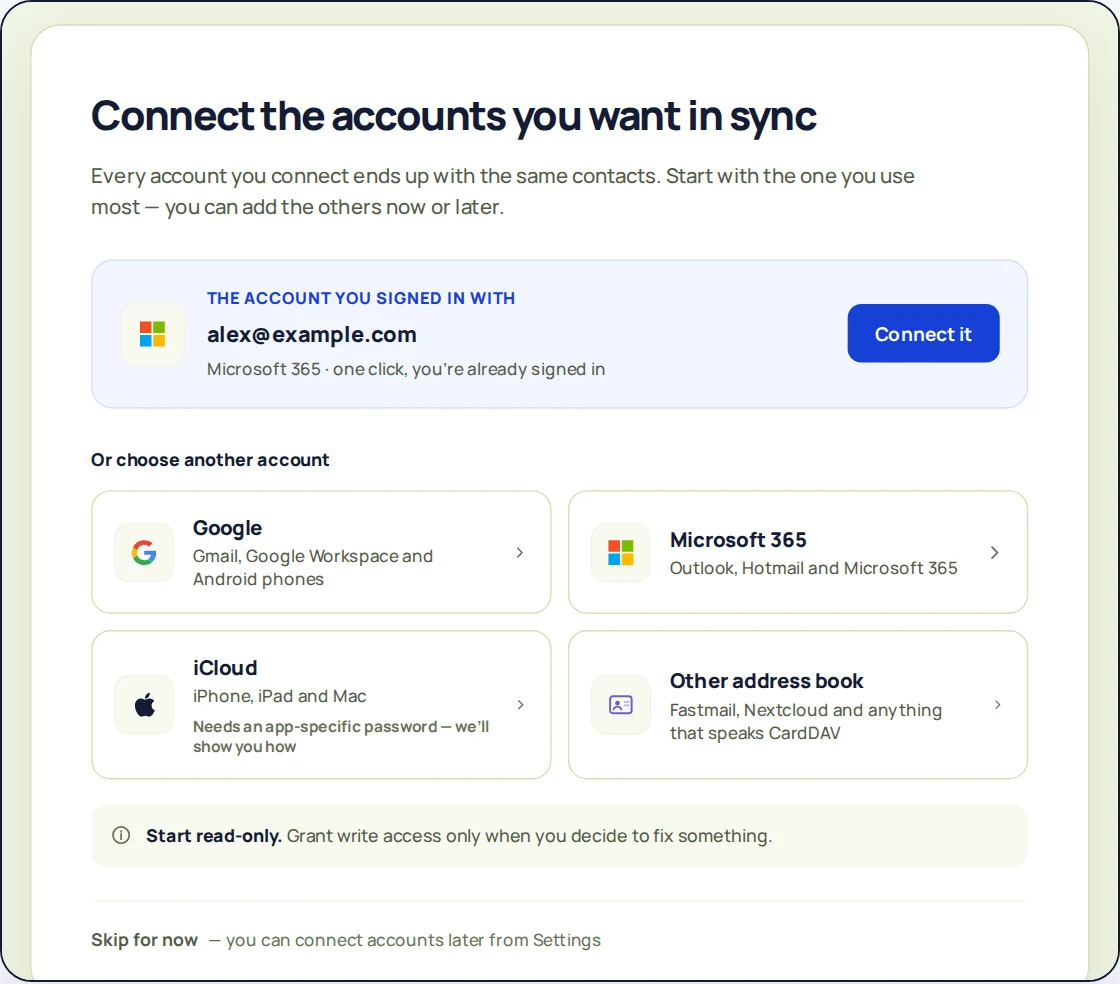
Connect each account and choose two-way or read-only. Connect Microsoft 365
Do the same with your work account. If your company manages it, your administrator may need to approve the connection first.
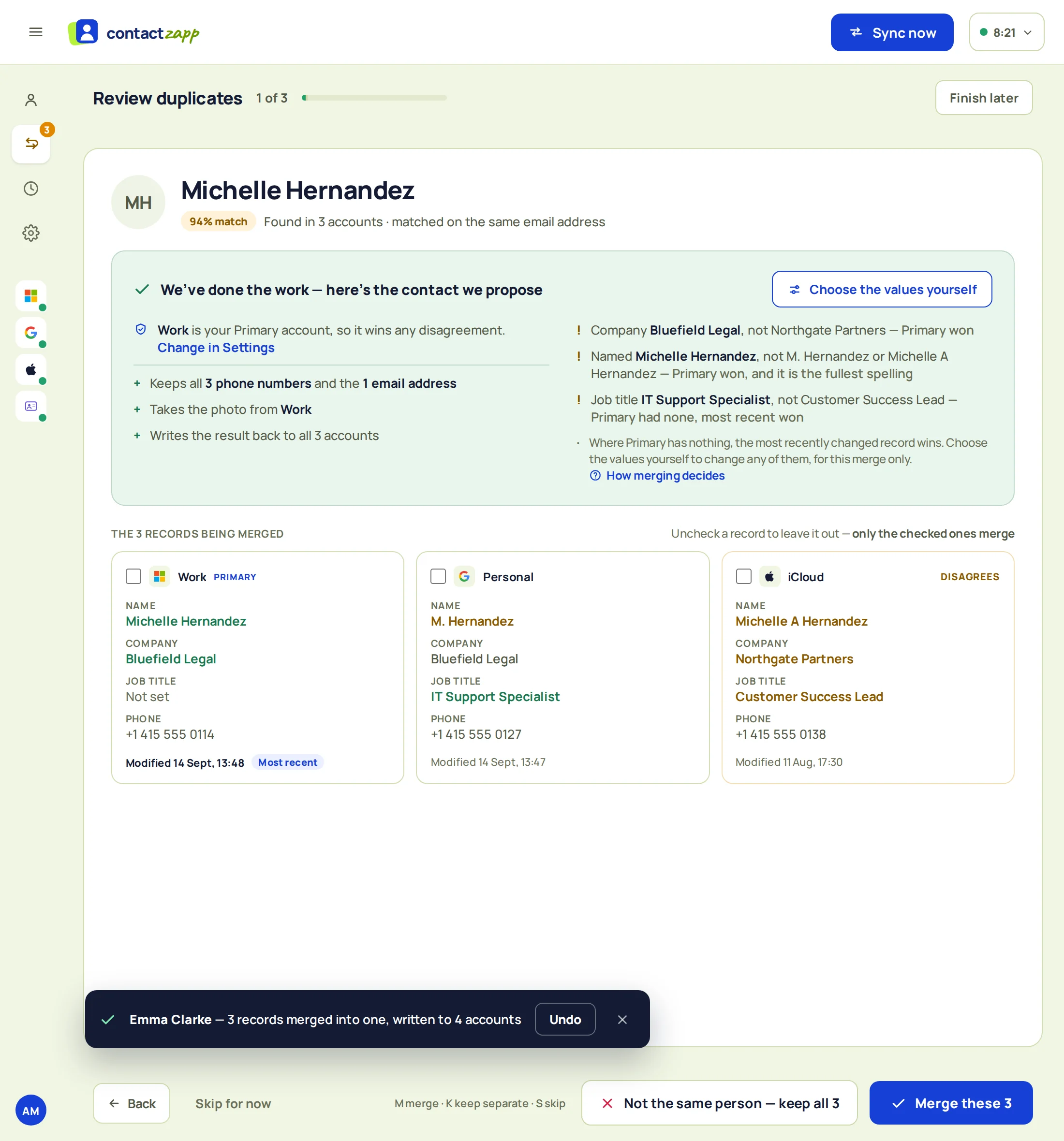
Review the matches
ContactZapp compares names, email addresses and phone numbers, and shows you the contacts it thinks are the same person. Anything it isn't sure about waits for you: pick the values to keep, or keep the records separate.
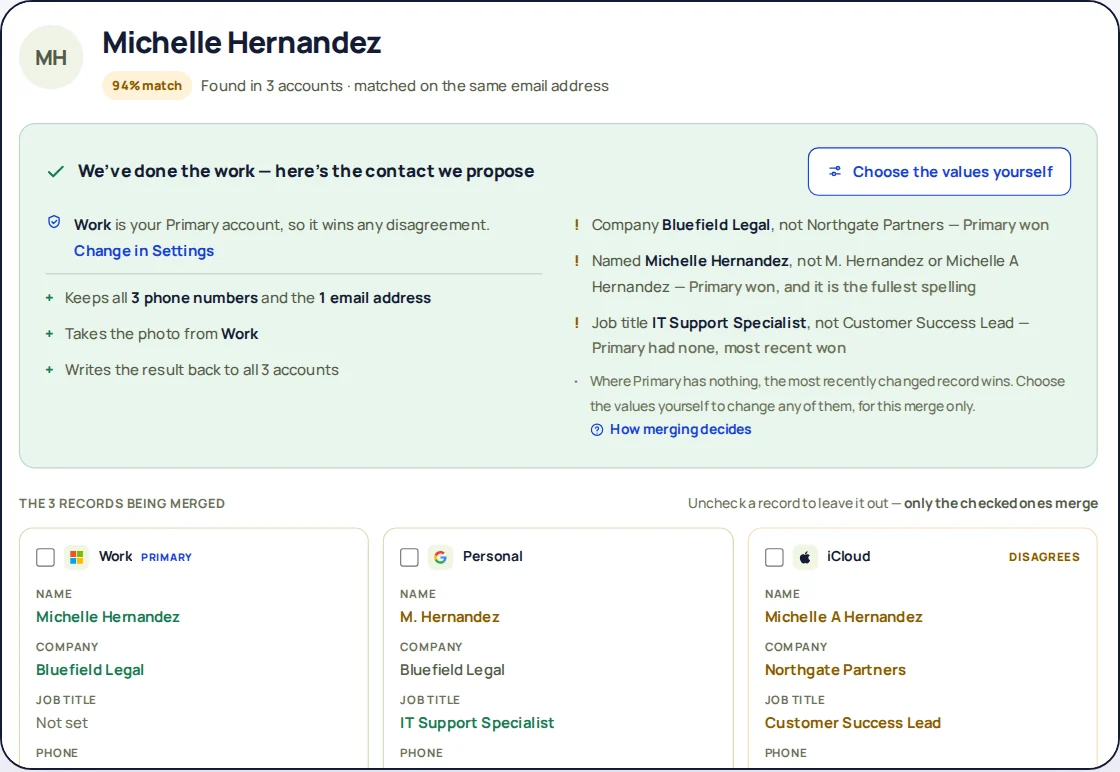
Review puts likely matches side by side. You choose what the merged contact says. Choose how often to sync
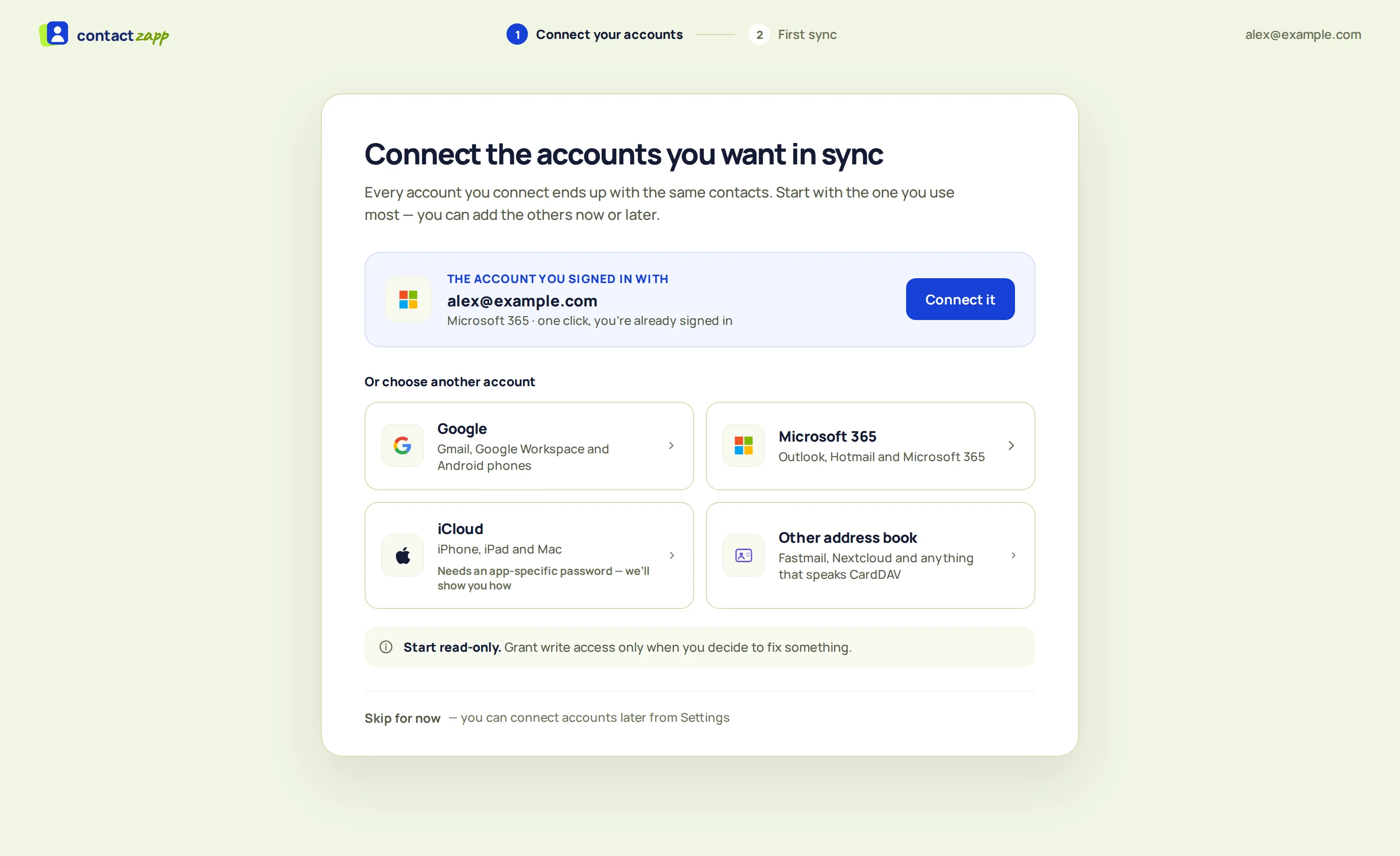
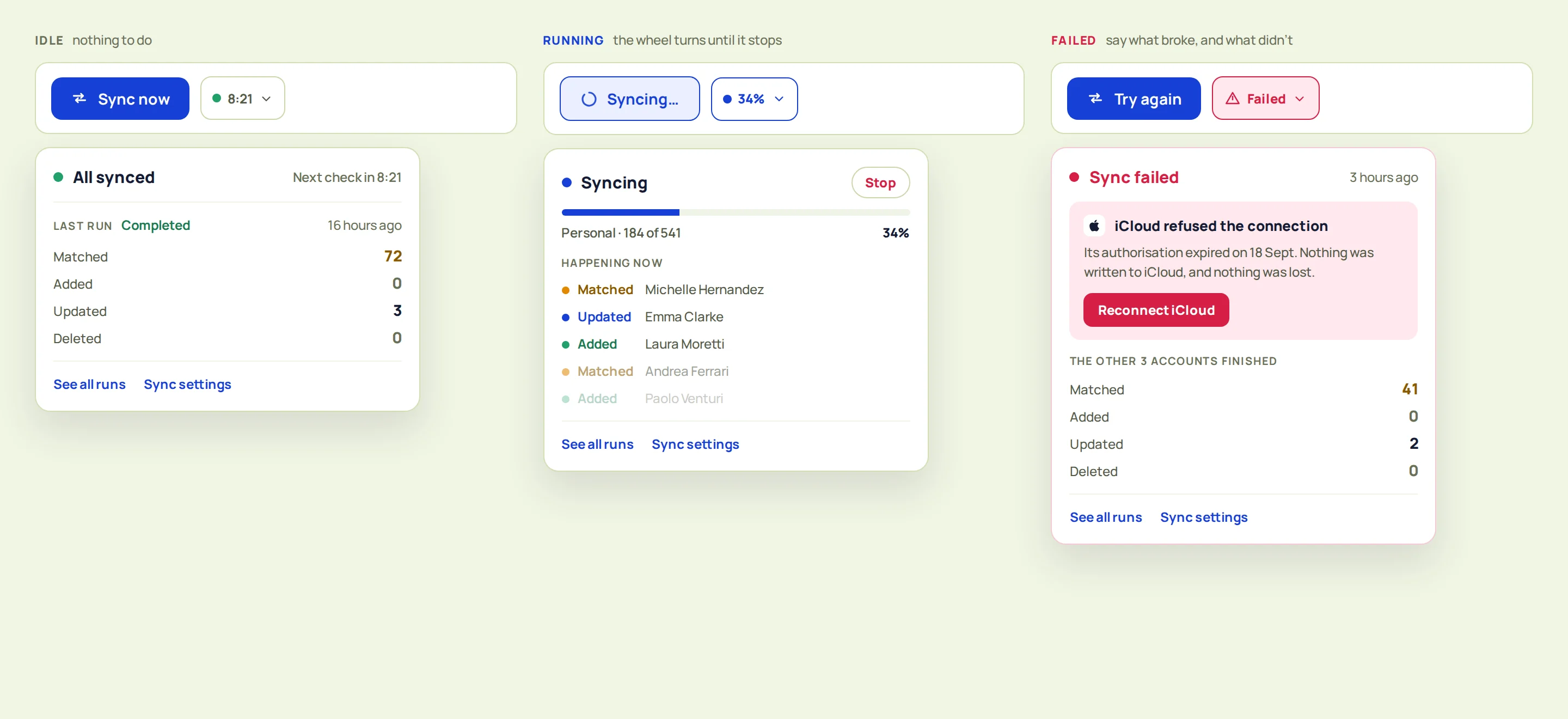
Hourly, daily, or only when you ask, set for each account. From then on, a change in either account reaches the other.
What to check after the first sync
Names, email addresses, phone numbers, postal addresses, company, job title, birthday, notes, websites and labels sync both ways. A merged contact keeps every phone number and email address from every account it came from.
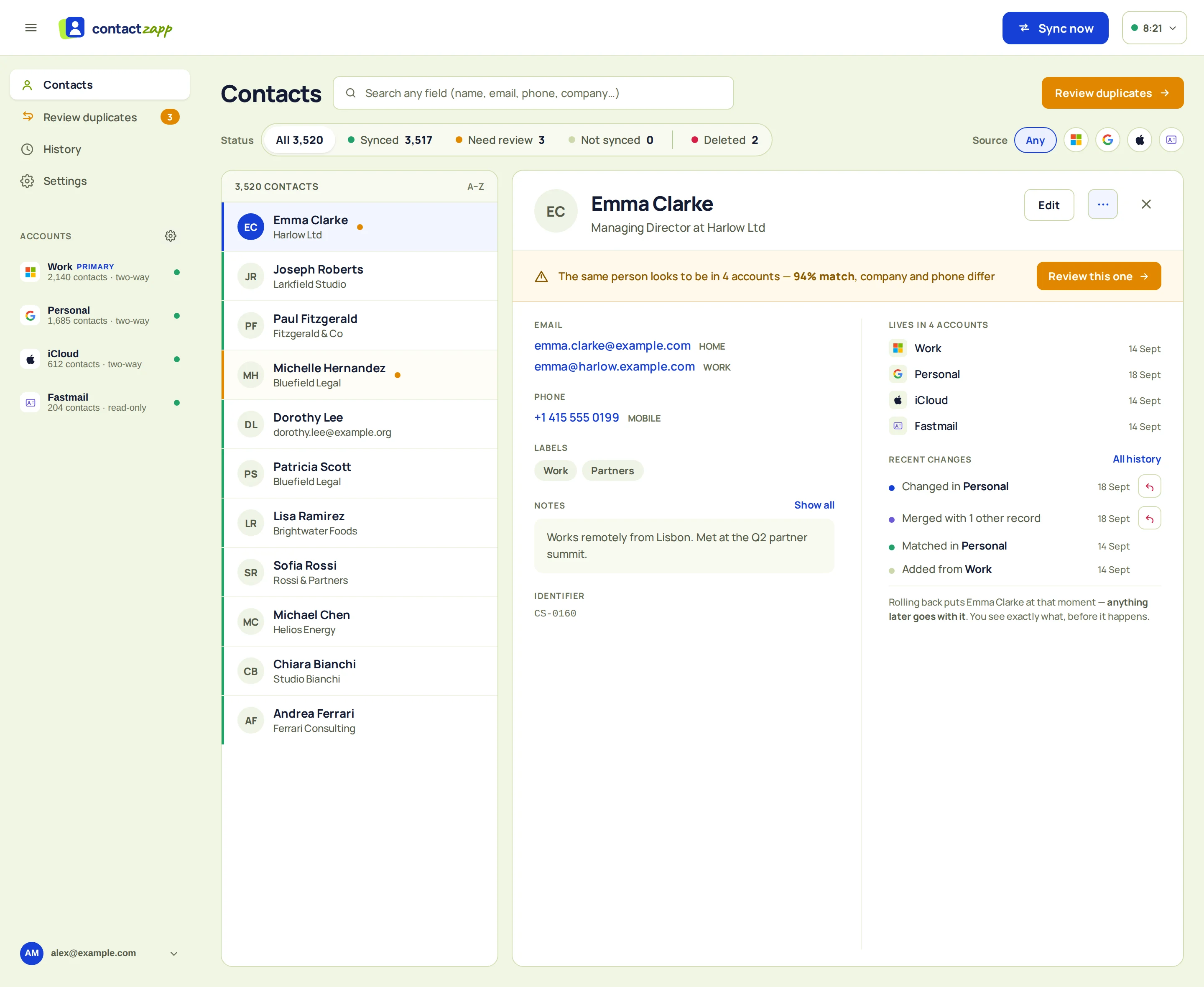
The first run is the one worth a look. Here's what you might see and what it means:
| If you see | It means |
|---|---|
| A contact flagged for review | Two accounts disagree about a field. Both values are kept until you choose. |
| A contact in only one account | It's created in your other two-way account on the next sync. |
| A merge you didn't want | Undo it from History, for that one contact or the whole run. |
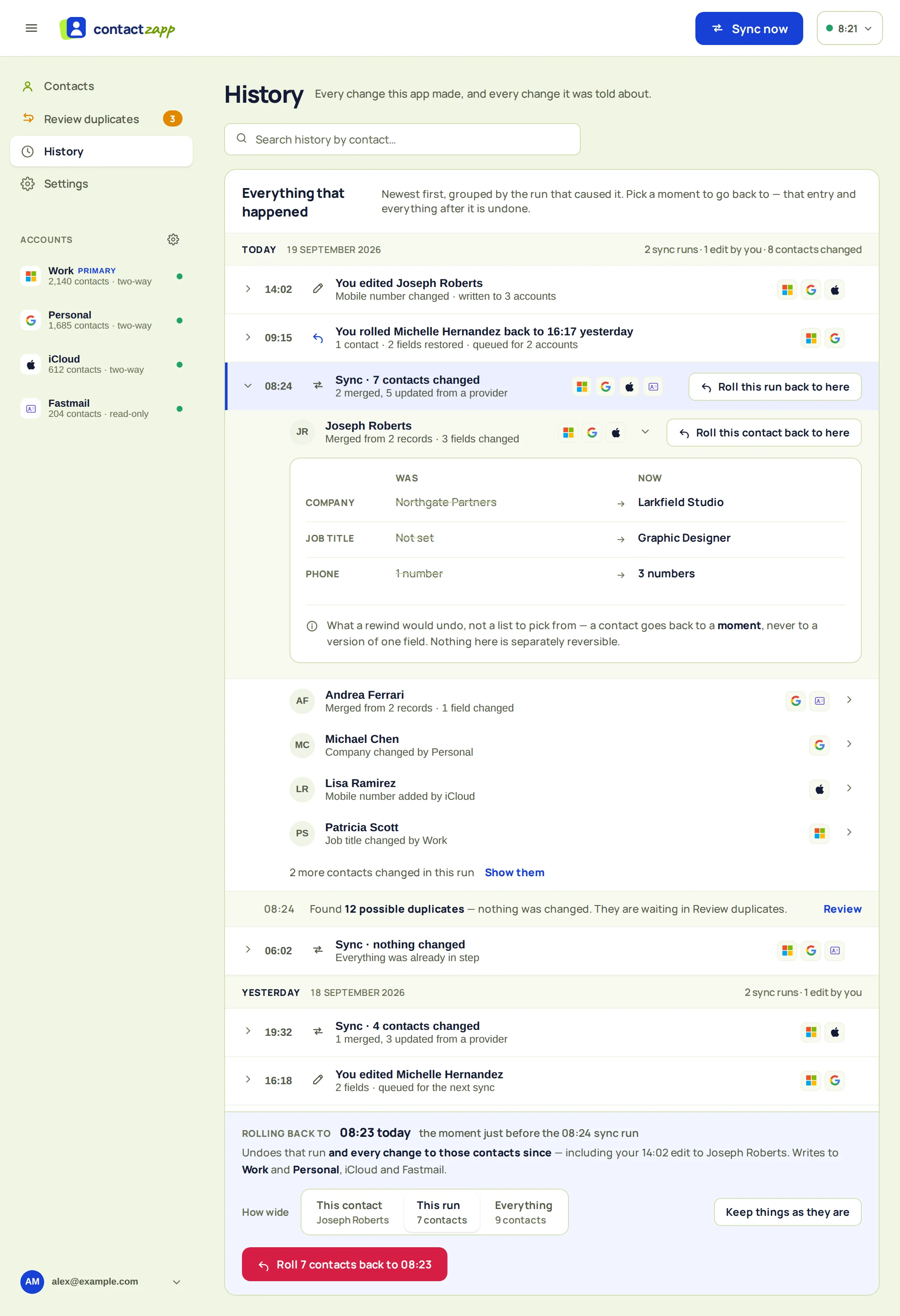
"Nothing is overwritten. When two accounts give different values for the same field, both are kept and the contact is flagged for your review."
The short version
Google and Microsoft 365 won't sync contacts with each other. A CSV export works once, Outlook can show both lists without joining them, and Google's Outlook plug-in only helps Workspace users on Windows. For one list that stays current on every device, use a two-way sync that merges duplicates and lets you undo what it did.