
Google Contacts has a real merge tool — "Merge & fix" — and it works. If the same person appears twice inside one Google account, Google will usually catch it and offer to combine them.
The problem is scope. "Merge & fix" only looks inside a single Google account. The same person in your work Gmail, your personal Gmail, and Outlook is three separate records with no built-in way to combine them. And because sync keeps all three accounts up to date, the duplicate keeps coming back in every other app that reads them.
Here's what Google's built-in tool does well, where it stops, and what we do differently.
The built-in route: Google's "Merge & fix"
Do this first — it's free and it handles the easy cases.
- Open Google Contacts at contacts.google.com.
- Open "Merge & fix" from the left menu (on Android: Fix & manage → Merge & fix).
- Review suggestions. Google shows contacts it thinks are duplicates. Accept individual suggestions, or click "Merge all."
- Or merge manually. Select any two contacts yourself and click the Merge icon — you don't have to wait for Google to suggest them.
What it does well: it's automatic, it's free, and it handles the common case (same person, same account, similar spelling).
Where it stops
"Merge & fix" has four hard limits:
1. One account at a time. Google's own docs: "You can't merge contacts that are saved in different Google Accounts." The same person in [email protected] and [email protected] is two records — permanently, as far as Google is concerned.
2. No cross-provider merge. The tool operates entirely inside Google Contacts. If the same person is also in Outlook or iCloud, those copies are untouched. And because sync keeps all three accounts current, the mismatch reappears every time you look at your contacts in a different app.
3. No field-level control. When you accept a merge, Google combines the records automatically. You can't choose which email address or phone number survives when the two contacts have different values in the same field. The system decides.
4. On-demand only. "Merge & fix" does not run continuously. New duplicates that appear after you run it stay until you remember to run it again.
What ContactZapp does differently
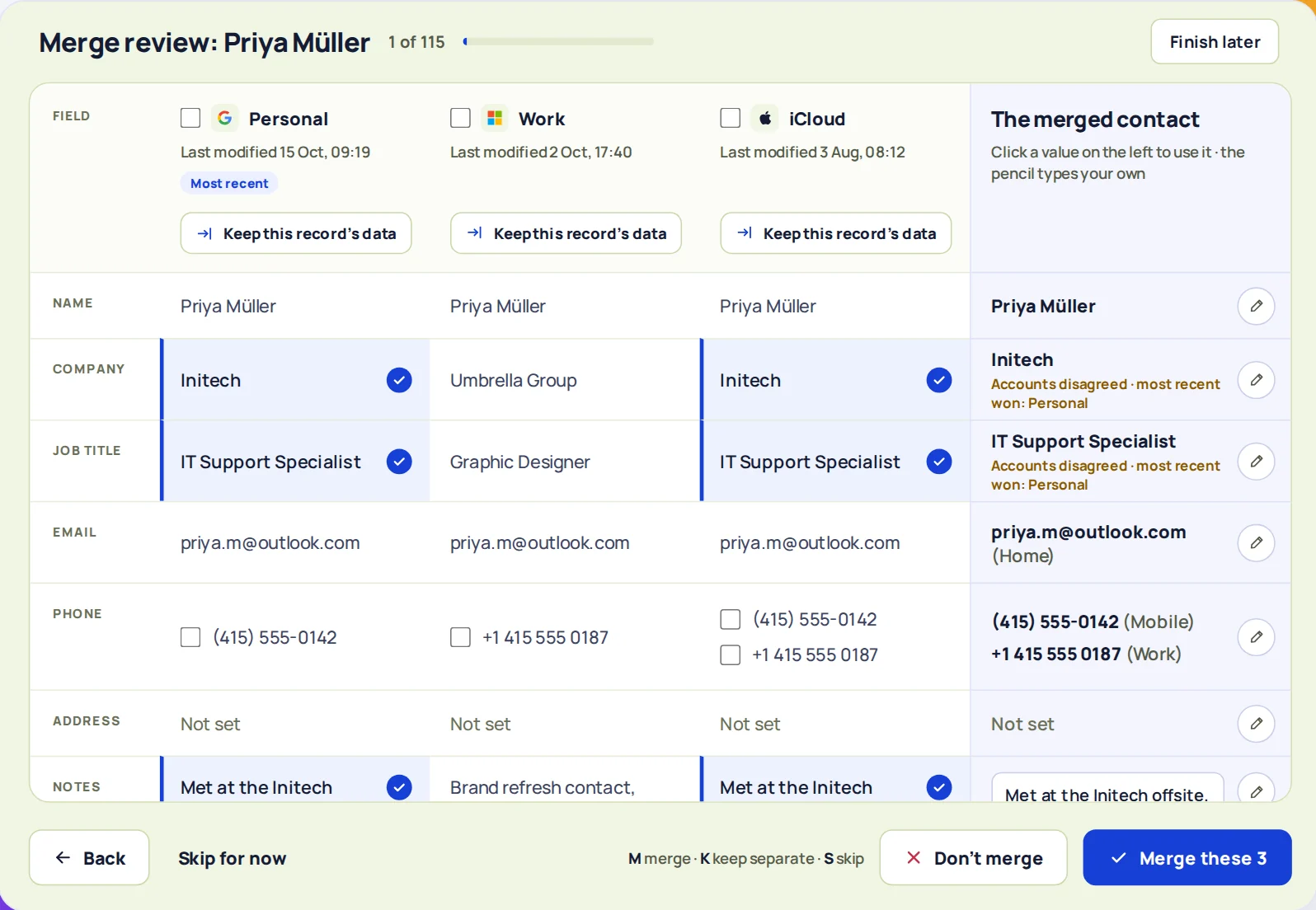
ContactZapp connects to all your accounts at once — Google, Outlook, iCloud, CardDAV — and looks for duplicates across all of them simultaneously. Here's what that means in practice:
Cross-account, cross-provider. The same person in your work Gmail, personal Gmail, and Outlook is found as one match. You review it once, merge it, and the merge is written back to all three providers. Not a unified view — the actual records, combined.
Field-by-field review. The review screen shows every record side by side. For each field, you choose what survives. Two different phone numbers? Keep both. Two different email addresses? Keep both. A fuller name on one and a nickname on the other? Pick the one you want.
You control when it runs. Set the confidence threshold that suits you — from "only certain matches" to "flag anything that looks similar." High-confidence merges can run automatically after every sync.
Merges are reversible. Every merge can be undone from your change history — the separate records are restored, with their own provider connections intact.
How ContactZapp works
When you connect your accounts and run a sync, ContactZapp builds a deduplication screen: every duplicate group, side by side, with each field laid out so you can see what would be merged. You review the matches that need a human eye — and you set the confidence level for the ones that don't.
The auto-merge settings offer three levels:
- Likely — flags anything that looks similar; nothing merges without your review.
- Very likely — merges automatically when the match is strong (shared email or phone plus similar name).
- Certain — merges only when the evidence is overwhelming (exact name plus exact email or phone).
Set the level that suits you. High-confidence merges run automatically after every sync; everything else waits for your review.
Example: You have "Jonathan Miller" in work Gmail with his work email and phone, "Jon Miller" in personal Gmail with his personal email, and "J. Miller" in Outlook with just a phone number. Google's tool sees three unrelated contacts (different accounts, different names). ContactZapp sees one person — the shared phone number is the signal — and offers to merge them into a single record with both emails, both phones, and the name you choose. The merge is written back to all three providers.
FAQ
Does ContactZapp merge contacts inside a single Google account too? Yes. It finds duplicates within each account and across accounts — the same matching either way.
Will merging in ContactZapp affect my Google Contacts? Yes. Merges are written back to Google (and any other connected provider) as real updates — not just a local view.
What if two contacts only share a name? Name-only matches are never auto-merged. They're flagged for your review, and you decide.
Can I undo a merge? Yes. Every merge can be undone from your change history — the original separate contacts are restored.
Does this work with the free plan? Yes. Connect your accounts and run a sync — the first 100 duplicates are deduplicated at the providers. You can see every duplicate found, including the ones beyond the free limit.