
Apple handles duplicates inside your Apple account better than anyone. The iPhone's "Duplicates Found" card (iOS 16+) catches same-name duplicates and merges them in taps. On Mac, Card → Look for Duplicates does the same.
The problem is what "inside your Apple account" means. Apple's linking feature can make the same person in iCloud, Google, and Outlook appear as one card — but Apple's own docs are explicit: "When you link contacts, those contacts aren't merged." Three records went in, three records remain. You're looking at a unified view of them.
Here's what Apple's built-in tools do, where they stop, and what we do differently.
The built-in route: merge and link
iPhone (iOS 16+):
- Open the Contacts app. If duplicates are found, a "Duplicates Found" card appears below My Card at the top of the list.
- Tap the card. Review the suggested duplicates.
- Tap "Merge All" — or open them one at a time to review each pair.
Mac:
- Card → Look for Duplicates → Merge — scans for apparent duplicates and merges them, keeping all unique information.
- Card → Merge Selected Cards — manually merge any cards you select.
- Card → Link Selected Cards — display cards from different accounts as one.
iCloud.com:
- No merge or duplicate-detection feature exists. Apple's own guidance: "If you see duplicates in Contacts on iCloud.com, visit Apple Support for help."
Where it stops
Detection requires identical names. Apple's criterion: "more than one contact card with the same first and last name." "John Smith" and "John A. Smith"? Missed. "Bob" and "Robert"? Missed.
Linking is not merging. Apple's own note: "When you link contacts, those contacts aren't merged." Linked cards display as one in All Contacts, and edits to the unified card copy back to source accounts — but the underlying records stay separate in each provider. Three records in iCloud + Google + Outlook = three records, just displayed as one.
iCloud.com has no tool. If you see duplicates at icloud.com, Apple directs you to support — there's no self-service fix.
On-demand only. The Duplicates Found card appears when iOS decides to surface it. There's no continuous monitoring, no manual scan trigger on iPhone.
What ContactZapp does differently
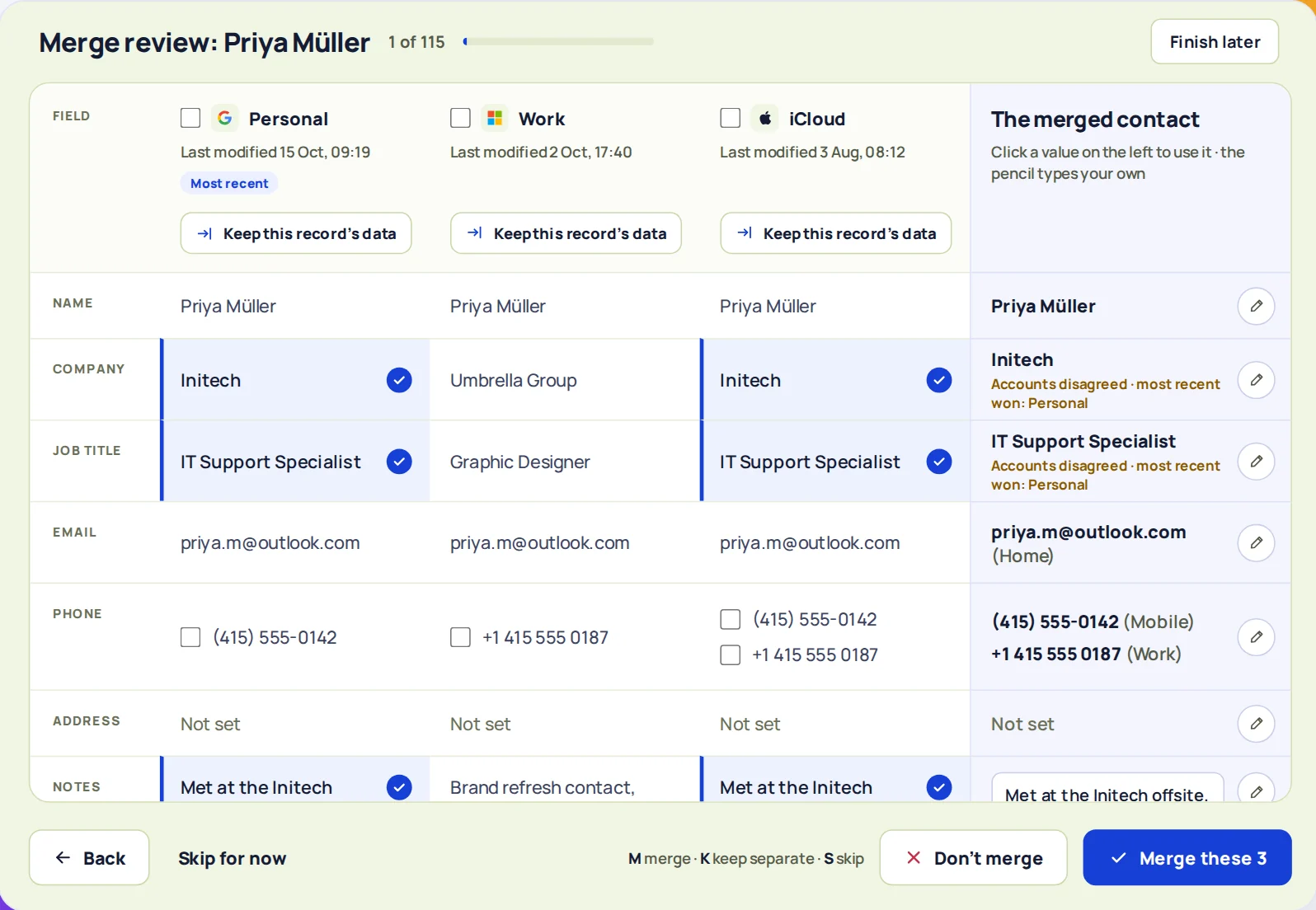
ContactZapp collapses the separate records into one real contact — everywhere.
One real contact, not a unified view. When ContactZapp merges, the separate records are combined into a single contact. The merge is written back to the providers — iCloud, Google, Outlook all hold the same, single record. Not a view of three records. One record.
Fuzzy matching. The matching engine uses name similarity, normalized email addresses, and E.164 phone numbers. "John Smith" in iCloud and "J. Smith" in Google with the same phone number? Found — no identical-name requirement.
Cross-provider. The same person in iCloud, Google, and Outlook is one match. You review it once, merge it, and the merge is written back to all three.
Field-by-field review. For each field, you choose what survives. Two different phone numbers? Keep both. A work email and a personal email? Keep both.
How ContactZapp works
When you connect your accounts and run a sync, ContactZapp builds a deduplication screen: every duplicate group, side by side, with each field laid out so you can see what would be merged. You review the matches that need a human eye — and you set the confidence level for the ones that don't.
The auto-merge settings offer three levels:
- Likely — flags anything that looks similar; nothing merges without your review.
- Very likely — merges automatically when the match is strong (shared email or phone plus similar name).
- Certain — merges only when the evidence is overwhelming (exact name plus exact email or phone).
Set the level that suits you. High-confidence merges run automatically after every sync; everything else waits for your review.
Example: You have "Maria Garcia" in iCloud with her personal email and phone, and "M. Garcia" in Google with her work email and the same phone number. Apple's linking shows them as one card but keeps both records. ContactZapp sees the shared phone number, offers the match, and merges them into one record with both emails — written back to both iCloud and Google.
FAQ
Does ContactZapp merge contacts inside a single iCloud account too? Yes. It finds duplicates within each account and across accounts — the same matching either way.
Will merging in ContactZapp affect my iCloud contacts? Yes. Merges are written back to iCloud (and any other connected provider) as real updates.
What if Apple already linked some contacts? Linked contacts are still separate records. ContactZapp sees them all and can merge them — including the ones Apple unified for display.
Can I undo a merge? Yes. Every merge can be undone from your change history — the original separate contacts are restored.
Does this work with the free plan? Yes. Connect your accounts and run a sync — the first 100 duplicates are deduplicated at the providers. You can see every duplicate found, including the ones beyond the free limit.