
Outlook's approach to duplicates is to hide them. New Outlook (and Outlook on the web) suppresses exact duplicates from view — they don't show up in your contact list, but they're still in your mailbox, still syncing to your phone, and still counted.
Classic Outlook doesn't even do that. There's no batch dedupe, no merge feature, no cleanup tool. If you have duplicate contacts in classic Outlook, your only built-in option is to delete them one by one.
Here's what Microsoft's built-in handling does, why it isn't enough, and what we do differently.
The built-in route: suppression, not removal
New Outlook / Outlook on the web:
- Automatically hides exact duplicates and "proper subset" contacts (one contact has strictly fewer fields than another, all matching).
- Runs continuously in the background — no manual trigger.
- Hidden contacts remain in the mailbox and are still visible in classic Outlook, Outlook for Mac, and Outlook mobile.
Classic Outlook:
- No batch dedupe or merge feature exists.
- The only native behavior is a "Duplicate Contact Detected" dialog when you try to add a new contact that matches an existing one — it does nothing for duplicates already in your address book.
Exchange / Microsoft 365:
- No server-side deduplication. The EWS deduplication element applies to search results, not contact storage. There is no admin tool or PowerShell cmdlet for deduplicating contacts at the mailbox or tenant level.
Where it stops
Suppression is cosmetic. New Outlook hides duplicates from view — but they still exist. They consume storage, they sync to other clients, and they're still there when you export your contacts or connect a third-party tool. Deleting the visible contact in new Outlook does remove its hidden duplicates — but that's deletion, not merging. You lose the data on the suppressed records.
No fuzzy matching. Only exact duplicates and proper subsets are caught. "Bob Williams" and "Robert Williams"? Not flagged. A phone number formatted differently? Not flagged. A typo in the name? Not flagged.
No cross-provider awareness. If the same person exists in Outlook and Google, Outlook's suppression doesn't know about the Google copy. The duplicate persists across providers.
Classic Outlook has nothing. If you're on classic Outlook, there is no built-in way to find or merge duplicates at all.
What ContactZapp does differently
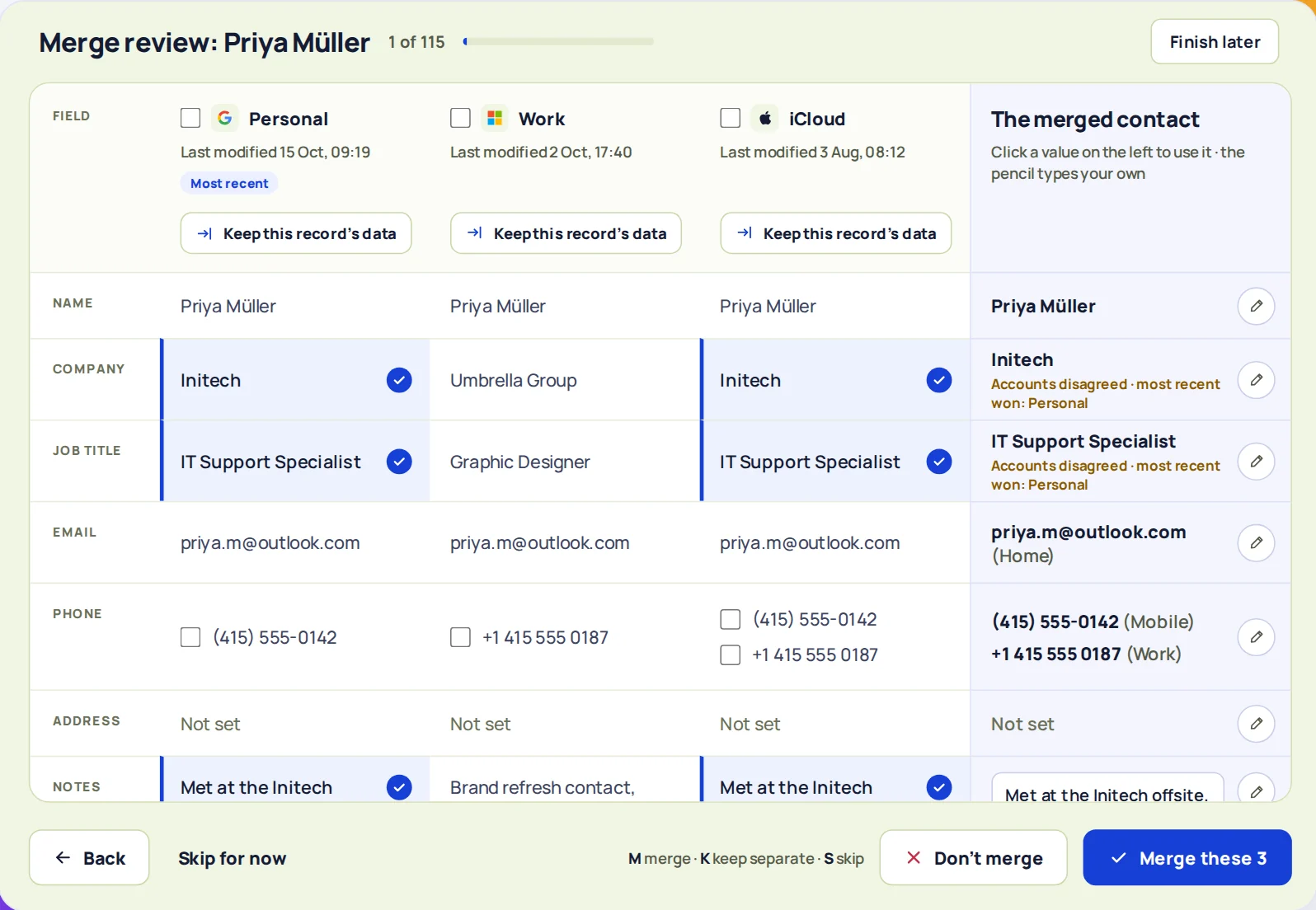
ContactZapp actually removes the duplicates — at the provider — and it sees across all your accounts, not just Outlook.
Real merges, not hiding. A merge combines two contacts into one and writes the result back to the provider. The duplicate is gone from Outlook, not just from the new Outlook view. Classic Outlook, Outlook mobile, and Outlook on the web all see the cleaned-up record.
Fuzzy matching. The matching engine uses name similarity (Levenshtein distance), normalized email addresses, and E.164 phone numbers to find candidates that exact matching misses. "Bob Williams" and "Robert Williams" with the same phone number? Found.
Cross-provider. The same person in Outlook and Google is one match. You merge once, and the merge is written back to both providers. No export/import, no manual copying.
Field-by-field review. For each field, you choose what survives. Two different job titles? Keep both. A work phone and a personal phone? Keep both.
How ContactZapp works
When you connect your accounts and run a sync, ContactZapp builds a deduplication screen: every duplicate group, side by side, with each field laid out so you can see what would be merged. You review the matches that need a human eye — and you set the confidence level for the ones that don't.
The auto-merge settings offer three levels:
- Likely — flags anything that looks similar; nothing merges without your review.
- Very likely — merges automatically when the match is strong (shared email or phone plus similar name).
- Certain — merges only when the evidence is overwhelming (exact name plus exact email or phone).
Set the level that suits you. High-confidence merges run automatically after every sync; everything else waits for your review.
Example: You have "Sarah Chen" in Outlook with her work email and phone, and "S. Chen" in Google with her personal email and the same phone number. Outlook's suppression sees different names and does nothing. ContactZapp sees the shared phone number, offers the match, and merges them into one record with both emails — written back to both Outlook and Google.
FAQ
Does ContactZapp work with classic Outlook? Yes. It connects to your Microsoft 365 account and merges contacts at the server — classic Outlook, new Outlook, and Outlook mobile all see the result.
Will merging in ContactZapp affect my Outlook contacts? Yes. Merges are written back to Microsoft 365 as real updates.
What if Outlook already hid some duplicates? Hidden duplicates are still in your mailbox. ContactZapp sees them all and can merge them — including the ones new Outlook suppressed.
Can I undo a merge? Yes. Every merge can be undone from your change history — the original separate contacts are restored.
Does this work with the free plan? Yes. Connect your accounts and run a sync — the first 100 duplicates are deduplicated at the providers. You can see every duplicate found, including the ones beyond the free limit.